NewAn app for editing PDF files · for computers and phones
PDFhatch from A to Z
Edit PDFs like ordinary text: select a paragraph and the AI assistant corrects it, shortens it or translates it — and puts it back in the same place. Plus 32 tools that work offline. Your files never leave your device.
PDFhatch 1.1 for Windows 10 and 11 (16.1 MB) and for macOS (38.6 MB). The first time you open it, the system will ask for your consent — the Download section explains how to get through that. Versions for iPhone and Android are in preparation.
Screenshot theme
AI assistant
Newin app version 1.1
Select the text,the assistant rewrites it
A typo in a contract, a paragraph that runs too long in an offer, a letter that needs to be in English — no need to go back to Word. Select the text in the PDF and the assistant proposes a change and puts it back in the same place on the page.
- Select — a paragraph with a click, a sentence with a second click, any passage by dragging.
- Pick a command — one of the ready-made ones, or say in your own words what to change. You can simply ask a question, too.
- Accept the corrections — one by one. Only then does the text reach the page, and you save the document as its next version.
The assistant works in the app once you sign in to your PDFhatch account. It needs an internet connection and has a daily limit of requests; the other tools work offline.
Screenshot theme
Assistant commands
- Correct errors
- Smooth the style
- Shorten
- Expand
- Formal
- Plain language
- Translate
- Explain
- Summarise
- Your own instruction
- It looks like the rest of the document
- The new text is set in the same typeface, size and colour, on the same baselines — justified text and bold included.
- The old text is really gone
- It is not left under a white box: the app cuts it out of the file. Where that cannot be done safely, it covers the text and tells you so.
- You decide on every change
- A proposal changes nothing. You see what goes and what comes in, and reject any correction you do not want with one click.
- Only what you select
- The Claude model receives the selected passage with its nearest surroundings — never the file. You switch the assistant on yourself and can switch it off at any time.
In numbers
The app at a glance
- No internet, no uploads32 tools — editing, merging, compression, OCR, signing — run on your device. Files are not uploaded anywhere.
- A library with historyEvery document you open goes into the library, and every result becomes its next version. Folders, tags, a bin that keeps things for 30 days.
- One document, many toolsRead, edit, sign, compress. The tabs above the document move it between tools in one click.
- Native, so it is fastCompiled to machine code, with no browser inside. A 180-page document is ready to read in half a second.
- The subscription works offlineAfter you sign in, the app fetches a key signed by the server by itself. Paid access works without a connection for up to 30 days.
- Light and dark themeLight, dark or the same as the system — the change takes effect at once. Document pages stay white, as in print.
From A to Z
The whole app,letter by letter
23 entries, each one a part of the app.
A — All the tools
32 tools in seven groups
The whole list sits in the sidebar, always in the same place. The “Search tools” field filters it — also when you type without Polish characters — and Enter opens the first hit.
- Editing content · 6 — viewer, editor, watermark, page numbers, signature, mail merge
- Document layout · 7 — merging, splitting, organising, deleting and extracting pages, rotation, cropping
- Convert to PDF · 5 — JPG, Word, Excel, HTML, scan
- Convert from PDF · 5 — Word, Excel, PowerPoint, JPG, Markdown
- Images · 1 — image format converter
- File quality · 3 — compression, OCR, repair
- Security and control · 5 — password protection, password removal, redaction, forms, comparison
AI — AI assistant
Select the text, the assistant rewrites it
The AI assistant changes text that is already in the document: it corrects errors, smooths the style, shortens, expands, translates — or explains what a passage means. You select a paragraph, a sentence or a whole page and pick a command.
- You accept or reject every correction separately — before anything reaches the page.
- The new text goes back in the same place: in the same typeface, size and colour, on the same baselines.
- The old text is really removed from the file, not hidden under a white box. Where that cannot be done safely, the app covers it and says so.
- Only the passage you select, with its nearest surroundings, goes to the Claude model (Anthropic) — never the file. You switch the assistant on yourself and can switch it off at any time.
- It needs an account and an internet connection, and there is a daily limit of requests. It does not read a scanned page — run OCR first.
C — Convert to PDF
Word, Excel and HTML typeset as PDF
The app reduces a Word document, an Excel sheet or an HTML page to headings, paragraphs, lists and tables, and then typesets them afresh as a PDF document.
- Text stays text — you can select it and search it.
- Excel: dates, percentages and currencies as the sheet shows them; the table header repeats on the following pages.
- This is continuous typesetting, not a copy of the look: the images, columns and styles of the original do not carry over.
- There are also “JPG to PDF” and “Scan to PDF”, which improves photos of sheets of paper.
D — Dark & light theme
Light, dark or the same as the system
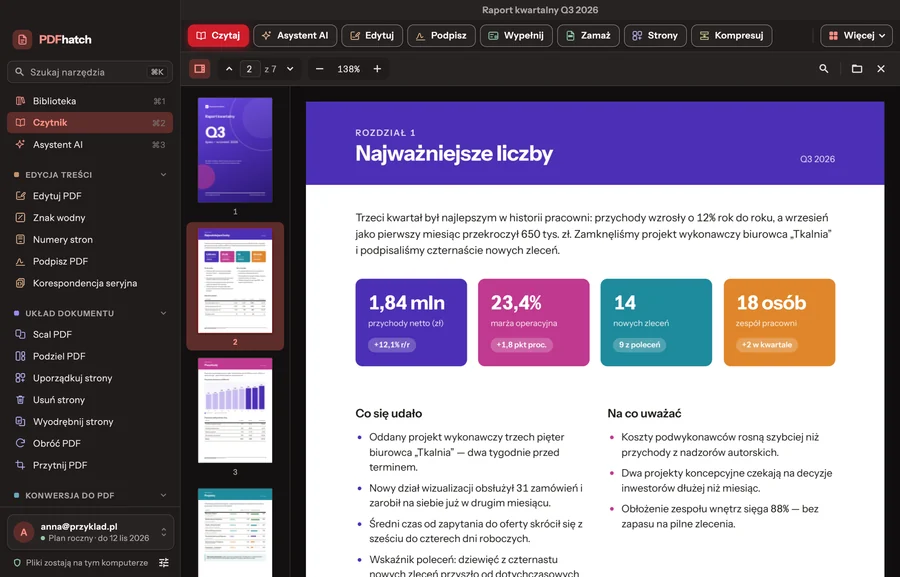
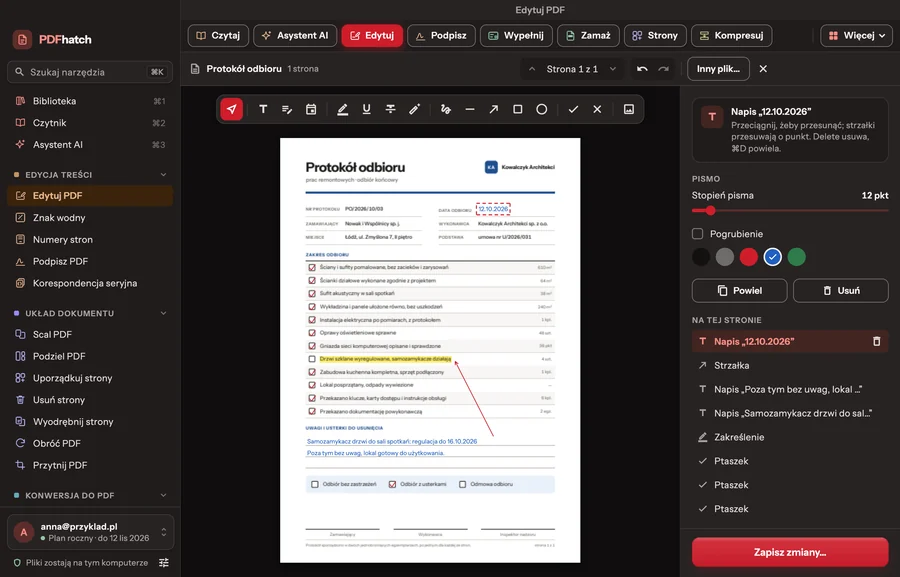
Three settings: light, dark or whatever the system is using at the moment. The change takes effect at once, without a restart — switch the screenshot alongside and see.
- The theme covers the whole window, including the window buttons and the system “Open” and “Save as” dialogs.
- Document pages stay white in both themes — just as they will come out of the printer.
- The text contrast in both themes is calculated, not judged by eye.
Screenshot theme
E — Editor
Sixteen tools above the page
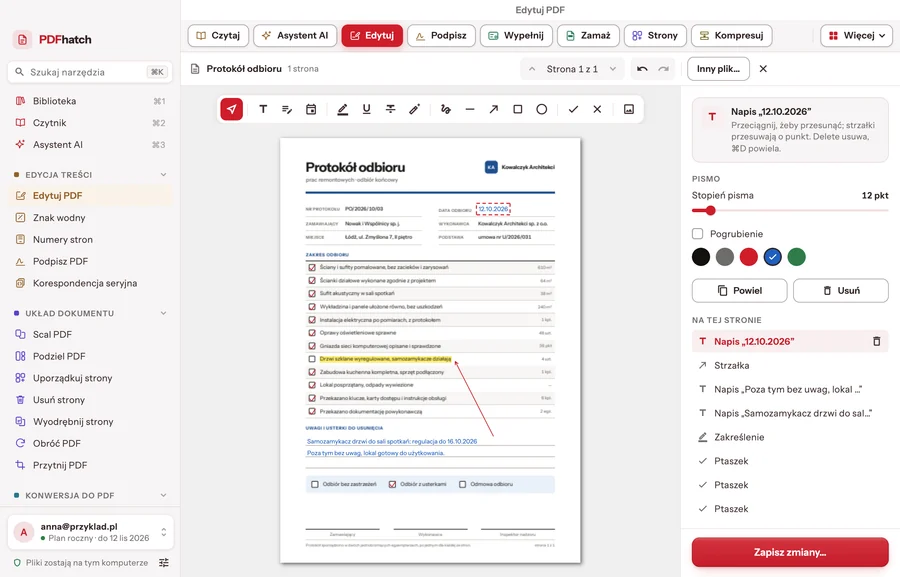
The editor places text, markup, shapes, marks and images on the page of a finished document. The tools sit in a bar above the page, and each has its own key.
- Rewriting a line: the old text is covered with the colour of the paper, and the new text goes in at the same type size on the same line.
- Highlight, underline and strikethrough; pen, line, arrow, rectangle and ellipse.
- A tick and a cross for checkboxes, today's date in one click, an image from the disk.
- The “On this page” list selects any object; the arrow keys move it by one point, and every change can be undone.
F — Forms
A PDF form filled in like an ordinary form
The app lists the fields of the document one below another: text fields, checkboxes, options and lists — with search when there are many fields. There is no need to aim at boxes on the page.
- It writes the values in a typeface that has Polish characters.
- On request it flattens the fields into the pages — the filled-in form can then no longer be changed.
- Tested on, among others, forms from ZUS, the Polish social insurance institution.
- It does not run form scripts (sums, date formats).
G — Google & account
You create an account and sign in inside the app window
The app uses the same account as pdfhatch.pl. You type your e-mail address and password in its window — that is also where you create an account, confirm it with a code from an e-mail and set a new password if you forget the old one.
- Google and Apple open the browser, where you are usually signed in already, and it hands the app a one-time code. Your Google or Apple password does not reach PDFhatch.
- The session survives closing the app.
- Your plan and the date your access runs to are shown in the footer of the sidebar.
- Changing your address, password and subscription — in account settings on the website.
H — History
Every result is another version of the document
A document in the library has its own history: the original and the successive versions after each tool. Nothing overwrites what was there before.
- The document panel shows the versions with the date and the tool that made them.
- Every version can be opened, restored or deleted.
- A document merged from several files is a new document and remembers what it was made from.
- “Compare PDF” shows what was added, removed and changed in the text of two versions.
J — Just double-click
Double-clicking a PDF opens PDFhatch
PDFhatch can be the program in which the system opens PDF files. You set this with one button — without searching through the system settings.
- Program settings → PDF files → “Set as default”. The window also says whether it already is the default.
- A document opened with a double-click appears straight in the viewer.
- Several files at once: the first opens in the viewer, the others wait in the library.
- “Open with” and dropping a file onto the window work too.
- The button is on macOS. On Windows you choose the default app in the system settings — PDFhatch is on the list there.
K — Key for offline work
Working offline, with a subscription too
Paid access works without a connection too. After you sign in, the app fetches a key by itself: a description of the account's entitlement, signed by the server and tied to this installation.
- Every connection to the internet renews the key by itself — there is nothing to click.
- The signature cannot be forged, and a key copied to another device will not work there.
- Signing out removes the key from the device.
How long the key lasts
Yearly plan, paid until March
30 days
Every connection starts those 30 days again — so in practice you do not see the limit.
The period ends in 10 days
10 + 3 days
Until the end of the paid period and three days longer — a margin for the subscription to renew on the payment day.
- sign-in
- the server signs the key
- the app checks the signature
- offline work
L — Library
The app starts with your documents
Every PDF opened in the viewer or in a tool goes into the library by itself. The result of a tool becomes the next version of the same document, not a stray file in the Downloads folder.
- Folders, tags in seven colours and favourites — they describe a document, they are not a place on the disk.
- Search by name, sorting, a grid with previews or a list.
- The bin keeps deleted documents for 30 days.
- The library is kept only on your device. The app does not touch the original — it keeps copies.
M — Mail merge
Diplomas and letters from a spreadsheet
One PDF template and a sheet of data give a series of documents: diplomas, invitations, letters. Each row of data is one finished document.
- Data from an .xlsx sheet, a CSV file or the clipboard.
- You draw the fields on the page; the content takes placeholders, for example {First name} {Surname}.
- A preview of every row of data and a check of the whole series before saving.
- The result: one file, or separate files named from a pattern.
N — Native app
Compiled, so it is fast
PDFhatch is a program compiled to machine code, with its own PDF engine — there is no browser inside. That is why it opens at once and does not slow down on large documents.
- A 180-page document is ready to read after about half a second.
- Merging three files into 372 pages takes 0.08 s; cutting 90 pages out of 180 takes 0.02 s.
- Only the pages you can see are drawn: scrolling does not wait for the rest of the document.
- One codebase for macOS, Windows, iPhone and Android. The measurements come from the macOS version.
O — Out of PDF
From PDF to Word, Excel and PowerPoint
The app reads the text of a PDF and reconstructs its layout — headings, paragraphs, tables — from the position of the text on the page. The result is a file to go on working with, not a picture.
- Word and Markdown: text with headings and lists.
- Excel: the tables of the document as a sheet.
- PowerPoint: each page as an image on a slide — the look is faithful, the text cannot be edited.
- A scan with no text layer gets a message instead of an empty file — run OCR first.
P — Pages & merging
One dossier from several files, pages in the right order
Merging is a list of files, an order set by dragging, and one document. Then the pages: order, rotation, deletion, extraction, splitting and cropping.
- A grid of thumbnails: select with a click, a range with Shift, or a typed range such as “1-3, 5”.
- A deleted page really disappears from the file, not just from view.
- Splitting into ranges, every few pages, or each page separately.
- Page numbers and a watermark — with Polish characters, which stay text.
Q — Quality
A smaller file, the same text
Compression reduces the images in a document and the way the file is stored. It does not turn pages into images, so text stays text.
- Three levels: images down to 200, 120 or 72 DPI.
- The result is never larger than the original — when the file cannot be made smaller, the app says so plainly.
- “Repair PDF” rebuilds a truncated or broken file and says what it recovered.
R — Redaction
Redaction that really removes
A black rectangle drawn on a PDF usually only covers the text — underneath, it can still be selected and copied. “Redact PDF” really removes the content.
- A redacted page becomes an image: the text under the black is not in the file at all.
- The price is that the remaining text on that page can no longer be selected.
- There is also password protection (AES-256) with restrictions on printing and copying, and removal of a password you know.
S — Signature
A signature that is sharp at any zoom
You draw your signature in the app or upload it as an image, and then place it with a click where it should go. A handle changes its size.
- A drawn signature goes into the file as strokes, not as an image — it is sharp on screen and in print.
- Initials on every page with one switch.
- This is a handwritten signature, not a qualified electronic signature with a certificate.
T — Text recognition (OCR)
A scan you can search
A scan is an image: you cannot search it or copy a sentence out of it. OCR recognises the text and adds it as an invisible layer — the page looks the same, and it starts to be text.
- Recognition is done by the engine of the system, on your device — the scan is not sent anywhere.
- It skips pages that already have text.
- Languages — the ones the system knows; Polish from macOS 15.
- On macOS for now. On the other systems the tool says plainly that recognition is not there yet.
U — Under your control
The library is ordinary files on the disk
The library is not a database in the cloud but a directory in the app's data: a folder for each document, and in it the successive versions as ordinary PDF files.
- The settings show how much space it takes and where it is.
- Saving can be turned off with one switch — the tools then work without history.
- Clearing the library asks for a second click and does not touch the originals on the disk.
- A file larger than 200 MB does not go into the library; the tools work on it as normal.
V — Viewer
A viewer with thumbnails and search
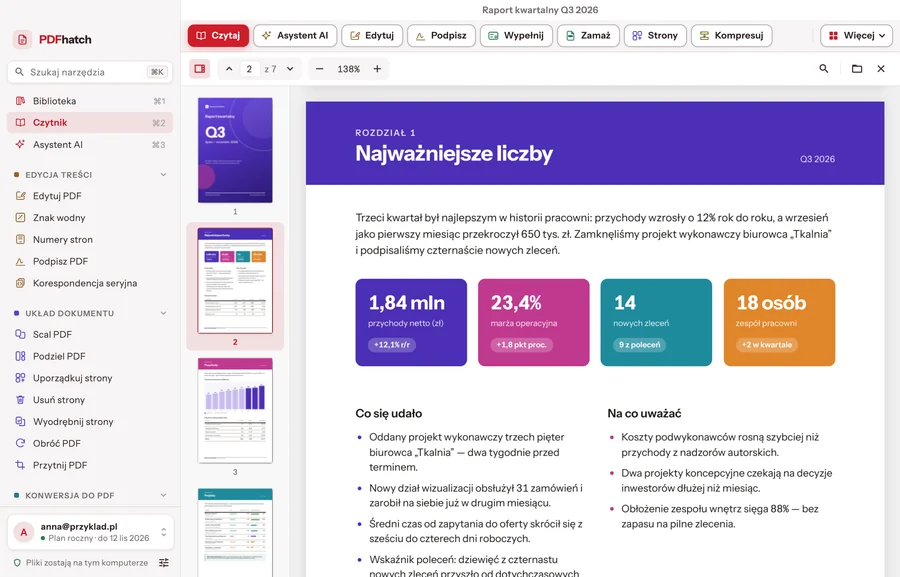
Work on a document starts in the viewer. It opens a file at once, however many pages it has, and the tabs above the document lead straight to the tools.
- Page thumbnails on the left and a field with the page number.
- Zoom that fits the width of the window or the whole page.
- Text search with highlighted hits and moving from one to the next.
- A file with a password or a damaged one: the viewer says why and leads to “Unlock PDF” or “Repair PDF”.
W — Workflow
From tool to tool with one tab
Above the viewer and every tool there is a row of tabs: Read, Edit, Sign, Fill in, Redact, Pages, Compress. A click opens the same document in another tool.
- Each tool remembers its work — going back to its tab finds it as it was left.
- After saving, it is the result, not the source that goes on to the next tool.
- “More” opens the whole list of tools for this document.
- read
- edit
- sign
- compress
Z — Zero uploads
No file reaches our servers
Everything the tools do with documents happens on your device. The app talks to pdfhatch.pl about the account, the payment, the key for offline work and the number of the latest version — and it sends document text only when you select it yourself for the AI assistant.
Your device
- the content of documents and their previews
- the results of all the tools
- the library and version history
- text recognised by OCR
- PDF passwords
pdfhatch.pl
- the e-mail address of the account
- subscription status (Stripe)
- issuing the key for offline work
- text selected for the AI assistant — only if you switch it on
Never: files, their names or previews. Document text goes out only to the AI assistant: just the passage you select, with its nearest surroundings on the page — and only at your command.
Download
PDFhatch for your computer and phone
What you can download is the PDFhatch app 1.1 — the one in the screenshots: for Windows 10 and 11 (64-bit, 16.1 MB) and for Mac computers with an Apple or Intel processor (macOS 12 or later, 38.6 MB). Versions for iPhone and Android are in preparation; the buttons will be switched on the day they are published.
First launch
- Windows
- When you open the downloaded file, a “Windows protected your PC” window appears. Choose “More info”, then “Run anyway”. Installation does not need an administrator password.
- macOS
- Open the downloaded file and drag PDFhatch to the Applications folder. The first time you open it, the system will refuse — go to System Settings → Privacy & Security and click “Open Anyway” next to the PDFhatch name.
The system asks because the app does not have a publisher signature yet. The warning is about the missing signature, not the contents of the file — download it only from this site.
Account and price
One account works in every version
The first operation needs no account and is free. After that, the monthly plan costs PLN 24.99 or the yearly plan PLN 249, and you start with 3 days free.
The screenshots on this page come from the macOS version of the new PDFhatch app. The app's interface is currently available in Polish. The documents, the account and the Kowalczyk Architekci studio in the pictures are examples.
Apple, the Apple logo, macOS and App Store are trademarks of Apple Inc. Google Play and the Google Play logo are trademarks of Google LLC. Windows is a trademark of the Microsoft group of companies.